Developing inside a Container
The Visual Studio Code Dev Containers extension lets you use a container as a full-featured development environment. It allows you to open any folder inside (or mounted into) a container and take advantage of Visual Studio Code's full feature set. A devcontainer.json file in your project tells VS Code how to access (or create) a development container with a well-defined tool and runtime stack. This container can be used to run an application or to separate tools, libraries, or runtimes needed for working with a codebase.
Workspace files are mounted from the local file system or copied or cloned into the container. Extensions are installed and run inside the container, where they have full access to the tools, platform, and file system. This means that you can seamlessly switch your entire development environment just by connecting to a different container.
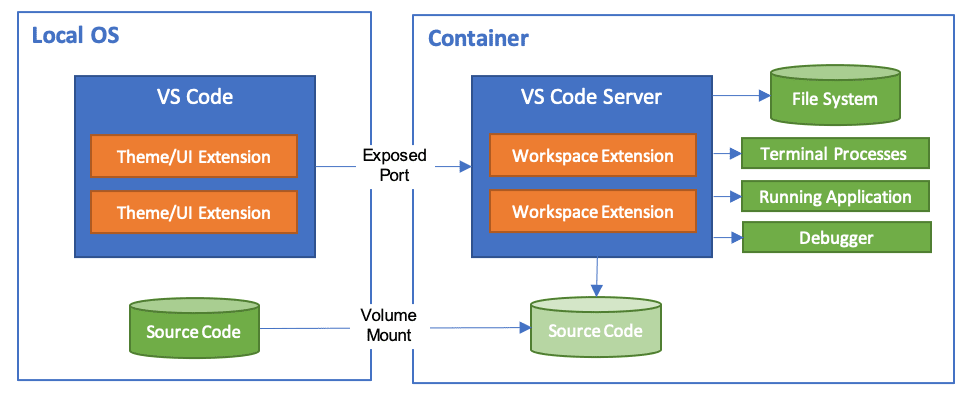
This lets VS Code provide a local-quality development experience including full IntelliSense (completions), code navigation, and debugging regardless of where your tools (or code) are located.
The Dev Containers extension supports two primary operating models:
- You can use a container as your full-time development environment
- You can attach to a running container to inspect it.
Note: The Dev Containers extension supports the open Dev Containers Specification, which empowers anyone in any tool to configure a consistent dev environment. You can learn more in our dev container FAQ and on the specification's site containers.dev.
Getting started
Note: You can learn how to get up-and-running quickly with dev containers in the introductory Dev Containers tutorial.
System requirements
Local / Remote Host:
You can use Docker with the Dev Containers extension in a few ways, including:
- Docker installed locally.
- Docker installed on a remote environment.
- Other Docker compliant CLIs, installed locally or remotely.
- While other CLIs may work, they are not officially supported. Note that attaching to a Kubernetes cluster only requires a properly configured kubectl CLI.
You can learn more in the alternative Docker options doc.
Below are some specific ways you can configure Docker on a local or remote host:
- Windows: Docker Desktop 2.0+ on Windows 10 Pro/Enterprise. Windows 10 Home (2004+) requires Docker Desktop 2.3+ and the WSL 2 back-end. (Docker Toolbox is not supported. Windows container images are not supported.)
- macOS: Docker Desktop 2.0+.
- Linux: Docker CE/EE 18.06+ and Docker Compose 1.21+. (The Ubuntu snap package is not supported.)
- Remote hosts: 1 GB RAM is required, but at least 2 GB RAM and a 2-core CPU is recommended.
Containers:
- x86_64 / ARMv7l (AArch32) / ARMv8l (AArch64) Debian 9+, Ubuntu 16.04+, CentOS / RHEL 7+
- x86_64 Alpine Linux 3.9+
Other glibc based Linux containers may work if they have needed Linux prerequisites.
Installation
To get started, follow these steps: